



Description
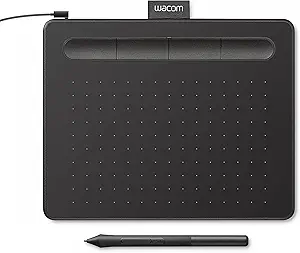
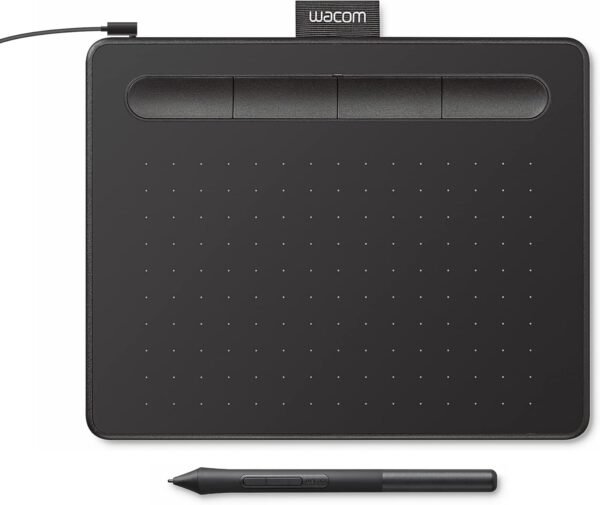
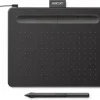
The Wacom Intuos Small is an entry level pen tablet, model number CTL4100, aimed at people beginning digital drawing, painting or photo editing. It is a flat drawing surface that you use with a pen while looking at your computer screen, not a display in its own right. Wacom lists it at 6.3 by 7.87 inches overall with a weight of 8.1 ounces, in black, with four customizable ExpressKeys and bundled software. The listing dates it to February 2018 and states that it is not discontinued.
What a Pen Tablet Is, and Who It Suits
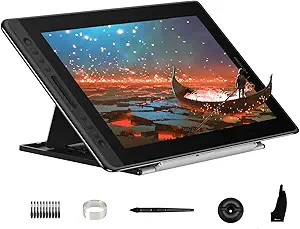
This distinction trips up first time buyers more than any other in this category. A pen tablet has no screen. You draw on the tablet surface on your desk while watching the cursor move on your monitor. That takes a short adjustment period, because your hand and your eyes are in different places, and most people adapt within a few sessions. A pen display, by contrast, has a screen you draw directly onto and costs several times more. The HUION Kamvas Pro 16 is an example of that other category, and it is worth understanding the difference before choosing.
The Small size suits photo editing, retouching, sketching, note taking and signing documents. A small active area means less arm movement per stroke, which some people prefer and others find cramped. If you draw large sweeping strokes or work on a large monitor, a medium tablet gives a more comfortable mapping. For most photo and light illustration work, small is enough and it leaves desk space for the keyboard.
The bundled software and online tutorials are part of Wacom’s pitch here. The listing does not name the specific software titles or state how long any included license lasts, so check what is currently offered on the product page rather than assuming a particular application is included.
The Pen and ExpressKeys
Pressure and pen handling
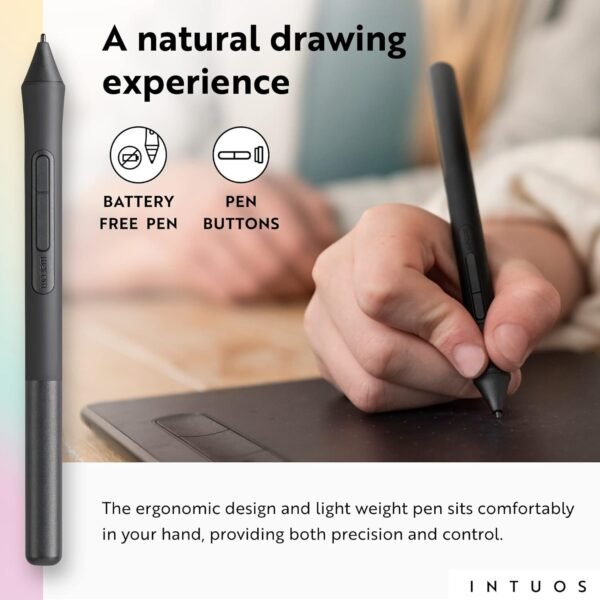
Wacom describes the pen as light and accurate, and positions the tablet for people getting started. Notably, the listing does not state a pressure sensitivity level, a report rate or a resolution figure, and it does not mention tilt support. Those specifications are the usual way tablets in this category are compared, and their absence here means this page will not quote a number for any of them. It also does not mention a battery or charging for the pen, which is consistent with a pen that draws no power of its own.
What the listing does make clear is the intended use: drawing, painting and photo editing on a Mac, PC, Chromebook or select Android phones and tablets, plus writing and annotation in education or remote work. That last use is underrated. A pen tablet is a genuinely better tool than a mouse for marking up documents, signing PDFs and annotating screenshots, and it costs far less than a pen display for that job.
Four ExpressKeys
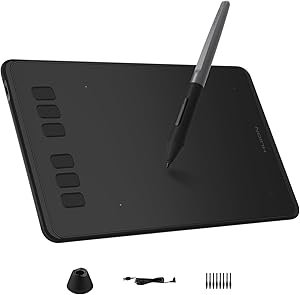
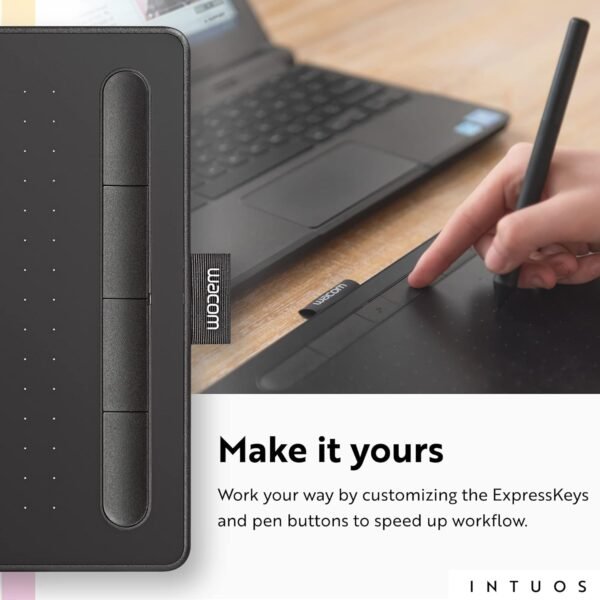
The four customizable ExpressKeys sit alongside the drawing area and can be assigned to shortcuts: undo, brush size, panning, switching tools. Four is a modest count and enough for the shortcuts you use constantly. Competing tablets at similar sizes often list six or eight buttons; the HUION Inspiroy H640P lists six, for instance. Whether that matters depends on whether you actually remember more than four shortcut positions by feel.
Platform Support
Wacom’s description names Mac, PC, Chromebook and select Android smartphones and tablets. The Chromebook support carries an explicit caveat in the listing: it works with devices capable of running the latest version of Chrome OS, and Wacom notes that Google is not responsible for the operation of the product or its compliance with safety requirements. That is standard language on Chromebook compatible accessories and it means the support is Wacom’s, not Google’s.
Android support is qualified as “select” devices, which is doing real work in that sentence. Android tablets and phones vary in how they handle USB peripherals, and a device that charges over USB-C does not necessarily accept a drawing tablet on the same port. Check Wacom’s own device compatibility list for your specific phone or tablet before relying on it. If a Chromebook is your main machine, something like the Lenovo IdeaPad Slim 3 Chromebook is the class of device this tablet is designed to attach to.
Highlights
- Entry level pen tablet, model CTL4100, in the Intuos Small size.
- Four customizable ExpressKeys for shortcuts on the tablet itself.
- Listed overall dimensions of 6.3 x 7.87 inches and a weight of 8.1 ounces.
- Compatibility listed for Mac, PC, Chromebook and select Android devices.
- Bundled software and online training material referenced by Wacom.
- Black finish, listed by Wacom as a current rather than discontinued product.
- Aimed at drawing, painting, photo editing, education and remote work annotation.
Things To Consider
The imported specification block contains several entries that do not belong to this product and should be ignored:
- A “RAM” field reading 2 MB. A pen tablet has no user relevant memory specification.
- An “Average Battery Life in hours” field reading 15 hours, while the product title describes no wireless connection. Wacom sells a separate wireless variant of the Intuos under a different model code, and the battery entry appears to have been carried across from it. If wireless operation matters to you, confirm the exact model number before ordering, because this listing gives no connection method at all.
- Hardware platform listed as “Linux, Mac, PC” while the operating system field lists “Android, Windows”. The description’s list, covering Mac, PC, Chromebook and select Android devices, is the one to work from.
- A stated thickness of 0.1 inches, which is thinner than any tablet with a USB port could be.
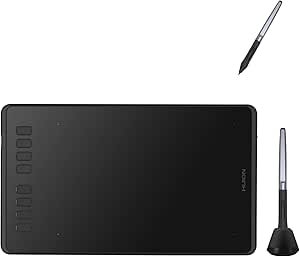
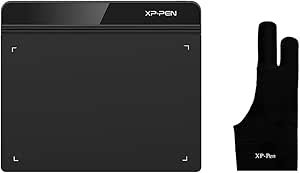
The substantive gaps are the missing pen specifications. Pressure levels, report rate, active area size and tilt support are the numbers that separate one pen tablet from another, and none of them appear here. If you are comparing this against another brand’s tablet, you will need Wacom’s own specification page to do it properly. Competing listings such as the XP-PEN StarG640 and the HUION Inspiroy H950P quote pressure figures directly, which makes a like for like comparison awkward from this page alone.
Finally, be realistic about the learning curve. A pen tablet is a skill, not a feature. The first hours are slower than a mouse, and the payoff comes after that. Wacom’s inclusion of tutorials is an acknowledgment of exactly this.
Who Should Buy It, and Who Should Not
Buy the Intuos Small if you are starting out with digital drawing or photo retouching, you want a compact tablet that leaves desk room, and you want a manufacturer with long standing driver support across Mac, Windows and Chrome OS. Four ExpressKeys and a light pen cover the fundamentals, and the small footprint suits a laptop bag as much as a desk.
Do not buy it if you want to draw directly on a screen, if you need a large active area for broad strokes, or if you are comparing on pressure sensitivity figures that this listing does not provide. Buyers on a tight budget who mainly want the basic function should compare the HUION Inspiroy H640P, and our graphics tablets category covers both pen tablets and pen displays.